

How to Resolve the “Unable to Check for Update” Error on iOS/iPad?
January 10, 2025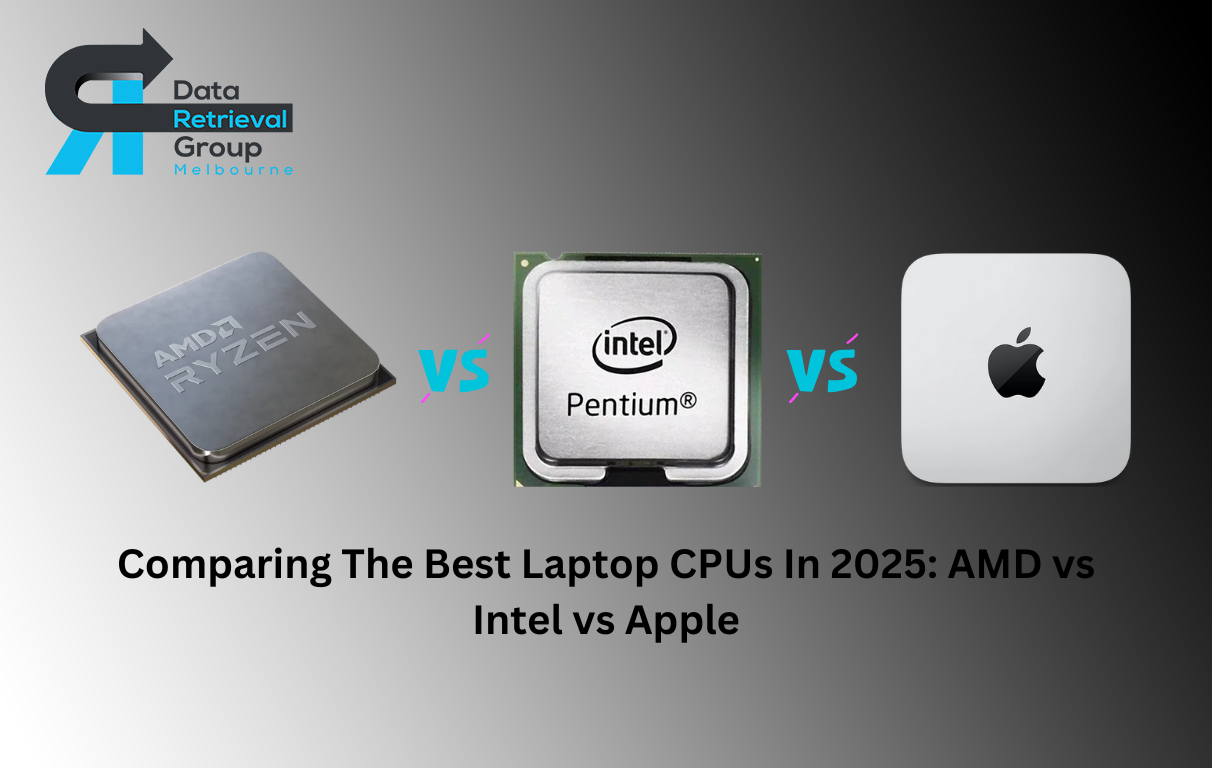
Comparing The Best Laptop CPUs In 2025: AMD vs Intel vs Apple
March 10, 2025
SD cards are becoming increasingly important because they offer a lot of benefits that other storage solutions don’t. For example, SD cards are small, light, and durable, making them perfect for portable devices like smartphones and tablets. They’re also affordable and easy to use, which is why they’ve become the go-to choice for storage needs ranging from music playback to photo storage.
SD cards are also versatile. They can be used in a variety of devices including digital cameras, camcorders, laptops, and desktop computers. And with the advent of ultra high capacity SD cards (up to 2TB), they’re quickly becoming the preferred choice for backing up data and storing large files.
If you’re looking to format an SD card, there are a few different ways to do it. But before we get into the specifics, let’s just briefly go over what formatting actually does.
When you format a drive, essentially what you’re doing is erasing all of the data on it and starting from scratch. So if you have anything stored on your SD card that you want to keep, be sure to back it up before formatting.
In this blog, we have talked about the best ways to format an SD card in windows, mac, and android phones.
How to Format SD Cards on Windows?
To format an SD card on a Windows computer:
- Insert the SD card into the computer’s SD card slot, or insert the USB SD card reader into a USB port on the computer.
- Open My Computer and double-click on the removable disk drive that corresponds to the inserted SD card.
- Right-click on the empty space in the window and select Format from the menu that pops up.
- In the Format window, set File system to FAT32 set allocation unit size to 32 kilobytes, and click Start.
- When formatting is complete, click OK to close the Format window. The SD card is now ready to use.
How to Format an SD Card in Mac?
Launch “Disk Utility” by going to Applications > Utilities. Select the SD card in the left sidebar. Click the “Erase” tab. Change the “Format” option to “Mac OS Extended (Journaled)”. Click the “Erase” button. Verify that you have selected the correct SD card and that you want to erase all its content. Click the “Erase” button again. The SD card will be formatted in a few seconds.
How to Format an SD Card in Android?
There are a few ways to format an SD card on an Android device. One way is to use the Settings menu. Another way is to use a third-party app. Finally, you can use a computer to format the SD card.
To format the SD card using the Settings menu, go to Settings > Storage > Format SD card. This will erase all of the data on the SD card.
To format the SD card using a third-party app, open the app and follow its instructions. There are many different apps that can be used for this purpose.
How Can we Help?
If you’ve lost important data from your SD card, our data recovery team in Melbourne can help. We have a successful track record of recovering data from all types of media, including SD cards. We use the latest techniques and technologies to give you the best chance of recovering your data.
We understand how important your data is to you, so we’ll do everything we can to help you get it back.
Check out our SD card data recovery services today to find out more about our SD Card Data Recovery service in Melbourne.


